
ShellPlus
Subscribe for News:
ShellPlus
Shell+ components
    Home
    News
    Overview
    Download Shell+
    Download examples
    Flash Demo
 
Developer Tools
    Shell Reset Tool
 
Shell+ Tutorial
    Namespace Extensions
    ShortCut menu
    Property Sheet
    Icon Handler
    Thumbnails
    InfoTip Handler
    Copy Hook
    Balloon TrayIcon
    Control Panel
    Shortcut Files
    Drag&Drop Menu
    Shell Change Notify
 
Powered by Shell+
    Romeo Burner
 
Documents
    Articles Index
    Press Releases
 
Ordering
    Order now!
    Resellers network
    Partner Offers
    Resellers wanted
 
Support
    Forum
    FAQ
    Contact directly
    Source Code Area
    Issue Tracking DB
 
About/Contacts
    Shell+ Developers

We are the CodeGear technology partner

We are ISDEF member


ShellLink Component Example

    Shortcut creation is a common task for Windows programmers. The TSxWinShellLink component makes shortcut handling as easy as possible. Follow the example below to learn how easy to use it.

    This example uses TSxWinShellLink to implement tiny shortcut editor. This editor is even more powerful that native Windows "Create shortcut" tool. Namely it allows to assign hotkey for the shortcut on the desktop while native shortcut editor does not support this feature.

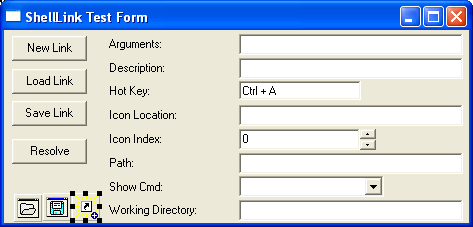
    Create a new application: File -> New... -> Application. Place a few controls onto its main form as shown on the figure below. Don't forget to add the TSxWinShellLink component:

Windows Shell Link Example

    Save the project now.

    The next step is to set TSxWinShellLink properties. Use the values from the table below to configure the component:

PathFlag This flag defines the format of the file path. The pfRawPath is used in this example. It means that the raw path name will be used. A raw path is something that might not exist and may include environment variables that need to be expanded.
STGM

Use this record to control the link file access method. Set its members as follows:
• Access = stgmReadWrite
• Creation = stgmCreate
• Sharing = stgmShareDenyNone
• Transactioning = stgmDirect

Other record members are not used to deal with the shortcut.


(Note: this table contains description of properties that will be used in this example. Please refer the online help to learn about other component properties)

    Set the event handlers now. The OnCreate event for the form is:

procedure TForm1.FormCreate(Sender: TObject);
begin
  ShellLink.New;
end;

     The OnClick event handler for the "NewLink" button is:

procedure TForm1.Button1Click(Sender: TObject);
begin
  ShellLink.New;
end;

     The "LoadLink" button has the following OnClick handler:

procedure TForm1.Button2Click(Sender: TObject);
begin
  if OpenDialog.Execute then
     ShellLink.LoadFromFile(OpenDialog.Filename);
  AssignValues;
end;

     The "SaveLink" button works as:

procedure TForm1.Button3Click(Sender: TObject);
begin
  ShellLink.Arguments:=eArguments.Text;
  ShellLink.Description:=eDescription.Text;
  ShellLink.HotKey:=eHotKey.HotKey;
  ShellLink.Modifiers:=eHotKey.Modifiers;
  ShellLink.IconLocationPath:=eIconLocation.Text;
  ShellLink.IconLocationIndex:=StrToInt(eIconIndex.Text);
  ShellLink.Path:=ePath.Text;
  ShellLink.ShowCmd:=TSxShowCmd(eShowCmd.ItemIndex);
  ShellLink.WorkingDirectory:=eWorkingDirectory.Text;
  if SaveDialog.Execute then
     ShellLink.SaveToFile(SaveDialog.Filename);
end;

     One more button - "Resolve" - is implemented as follows:

procedure TForm1.Button4Click(Sender: TObject);
begin
  if ShellLink.Resolve(Handle,[]) then
  begin
    AssignValues;
    ShowMessage('Resolve OK')
  end
  else
     ShowMessage('Resolve Failed');
end;

     The AssignValues procedure is used by handlers above. Implement it as:

procedure TForm1.AssignValues;
begin
  eArguments.Text:=ShellLink.Arguments;
  eDescription.Text:=ShellLink.Description;
  eHotKey.HotKey:=ShellLink.HotKey;
  eHotKey.Modifiers:=ShellLink.Modifiers;
  eIconLocation.Text:=ShellLink.IconLocationPath;
  eIconIndex.Text:=IntToStr(ShellLink.IconLocationIndex);
  ePath.Text:=ShellLink.Path;
  eShowCmd.ItemIndex:=Integer(ShellLink.ShowCmd);
  eWorkingDirectory.Text:=ShellLink.WorkingDirectory;
end;

    Save the project and compile it - it is ready now! Test it. Run it and press the "LoadLink" button. Select any acceptable file with a .lnk extension (it is a shortcut) and press the "OK". The shortcut file will be loaded and you will see its parameters. Now you can modify the shortcut parameters and save it.

  Use links below to download source codes of this example as well as binary files:

This example demonstrates how to parse lnk-files. Read more...

ShellLink-D5.zip , 4/4/2007, 11Kb
ShellLink-D6.zip , 4/4/2007, 11Kb
ShellLink-D7.zip , 1/7/2007, 11Kb
ShellLink-D9.zip , 2/23/2008, 12Kb
ShellLink-D10.zip , 4/4/2007, 10Kb

  Top


Components | Download | Purchase | Support | About Us
Copyright © 2001 - 2006 Shell+ Development Group. All rights reserved.