
ShellPlus
Subscribe for News:
ShellPlus
Shell+ components
    Home
    News
    Overview
    Download Shell+
    Download examples
    Flash Demo
 
Developer Tools
    Shell Reset Tool
 
Shell+ Tutorial
    Namespace Extensions
    ShortCut menu
    Property Sheet
    Icon Handler
    Thumbnails
    InfoTip Handler
    Copy Hook
    Balloon TrayIcon
    Control Panel
    Shortcut Files
    Drag&Drop Menu
    Shell Change Notify
 
Powered by Shell+
    Romeo Burner
 
Documents
    Articles Index
    Press Releases
 
Ordering
    Order now!
    Resellers network
    Partner Offers
    Resellers wanted
 
Support
    Forum
    FAQ
    Contact directly
    Source Code Area
    Issue Tracking DB
 
About/Contacts
    Shell+ Developers

We are the CodeGear technology partner

We are ISDEF member


Shell+ 2.1 release comments


Two new components are included in this release. These components are designed to be used for general shell extension development (Additional FolderColumns and Shell Overlay extension). The namespace extensions support is improved too. Now it supports clipboard operations, drag'n'drop operations, common dialogs and many other features.

As usual you are welcome to discuss this article in our forum.

Additional folder columns extension

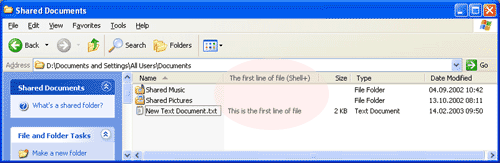
With TSxColumnProvider component you can specify the list of additional columns, that appear in details view for all Shell folders on Windows 2000 and Windows XP:

To use this component just create new ActiveX library, add SxModule to it and put TSxColumnProvider component on SxModule form. Also you need to specify the list of columns in Columns property.

On the next step you should handle OnGetColumnData event to specify the text that will appear in the column. Below you can find the common implementation of this event handler:

procedure TSxModule1.SxColumnProvider1GetColumnData(const FileName,
  Ext: String; Column: TShellColumn; var Data: OleVariant);
var
  TempStrings:TStrings;
begin
  if AnsiUpperCase(Ext)='.TXT' then
  begin
    TempStrings:=TStringList.Create;
    try
      TempStrings.LoadFromFile(Filename);
      Data:=TempStrings[0];
    finally
      TempStrings.Free;
    end;
  end;
end;

Also you can download examples: D4, D5, D6, D7


Shell overlay icon extension

With TSxOverlayIcon component you can specify your custom overlays for different files. Overlay is a small image, that appear on the bottom-left corner of icon associated with file object. The most common example is a shortcut sign on the *.lnk files.

To use this component just put it on SxModule of your shell extension project and specify the icon file and icon index. In case of overlay icons Shell can access it only from file based location, so you can specify any system icon containers - *.exe, *.dll and *.ico files. In addition you can add your own icon to the resources of your shell extension project.

Note: icon container file should be located within the PATH variable directories. The most common place is a Windows\System32 directory. Otherwise you should specify direct path to the icon file in OnPrepareOverlay event handler like shown in example below.

After that you should write handlers on two events - OnPrepareOverlay and OnShowOverlay:

procedure TSxModule1.SxOverlayIconPrepareOverlay(Sender: TObject;
  var IconFileName: WideString; var IconIndex: Integer);
begin
  IconFileName:=ComServer.ServerFileName;
end;

procedure TSxModule1.SxOverlayIconShowOverlay(Sender: TObject;
  const FileName: String; var ShowOverlay: Boolean);
begin
  ShowOverlay:=ExtractFileExt(FileName)='.txt';
end;

Also you can download examples: D4, D5, D6, D7

Clipboard operations support for NSE

Starting from this version clipboard operations automatically supported by Shell+ components. The only thing you need to do is to provide information about data grains contents through handling DataProvider events.

Context menu items (Cut/Copy/Paste) are added automatically but you can specify your own items to get events when any of clipboard operations occured. For example you can make file icon "shadow", when this file copied to clipboard using Cut operation. Another example - you can specify your own captions to the Cut/Copy/Paste menu items instead of common captions.

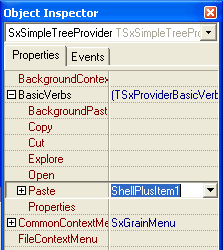
To specify your context menu items as common Shell verbs you will specify them in the Provider.BasicVerbs property:

Note: event handlers of these menu items are called after clipboard operation occurs.

To allow clipboard operations to be performed you should write event handlers for DataProvider to specify the contents of data grains that is used in clipboard operations. You can provide your grains data by different ways so you can implement one or even all of them. To get more information on data handling events go to "Writing data handling events for DataProvider" article.

You can download examples: D4, D5, D6, D7

Drag'n'Drop operations support for NSE

Drag'n'Drop operations are automatically supported by Shell+ NSE components too. There are no additional components required to allow your namespace extension to support drag'n'drop operations. Similarly to clipboard operations you only need to specify event handlers to provide data grains contents to the Shell and create new grains using the same information when something is dropped on your namespace extension.

There are two event groups in DataProvider component - events for receiving data (to allow files to be dropped on your NSE) and events for rendering data (to allow your files to be dragged from your NSE to another locations). If you don't need to receive data from other shell folders or applications just do not implement corresponding events. To get more information on data handling events please refer to "Writing data handling events for DataProvider" article.

You can download examples: D4, D5, D6, D7

Common dialogs support for NSE

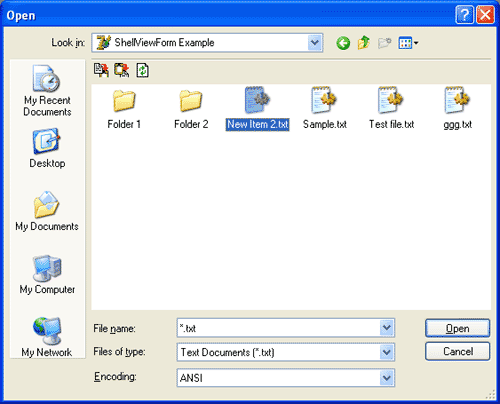
Starting from this version of Shell+ your customers are able to save or open files from your namespace extension from different applications. Currently almost all applications from Notepad to Word® that use common file dialogs can specify what files to save or open:

To allow your namespace extension to be available from common dialogs, first you will specify the following attributes for your ShellFolder component:
    • ShellFolder.Attributes.FileSysAncestor = True
    • ShellFolder.Attributes.FileSystem = True
    • ShellFolder.LoadWithoutCOM = True
Other properties should be specified depending on your needs and requirements.

Also you need to write handlers on several events to allow the DataProvider to provider required ifnormation to common dialog and calling application.

If your datagrains already have valid file representation on the disk, you will handle OnGetGrainFilename event to provide full path to valid, existent file on the disk or network. In this case you don't need to write another event handlers.

If your datagrains are pure virtual and their data contains something in database or shoule be generated on-fly, you will write event handlers for the following DataProvider events: OnGetGrainFileContents, OnGetGrainFileInfo, OnHandleModify and OnNewGrainFromFile or OnNewGrainFromStream. First two event handlers are used in clipboard and drag'n'drop operations, so in this part we will explain only OnHandleModify and OnNewGrainFromFile(Stream) events.

OnHandleModify event called when calling application has modified file representation of your DataGrain. So you will write handler for this event to reflect changes in your database on any other data storage. Here is sample implementation of this event:

procedure TPermanentModule.SxSimpleTreeProviderHandleModify(
  Sender: TSxCustomProvider; DataGrain: TSxCustomDataGrain;
  DataStream: TStream);
var
  ThisPermanentGrain:TSxSimpleTreeDataGrain; // Only TSxSimpleTreeView specific
  Temp:array [0..1000] of char; // Just for example
begin
  if DataStream.Size>1000 then
     Exit;
  FillChar(Temp,1000,0);
  ThisPermanentGrain:=TSxSimpleTreeProvider(Sender).
                            LocatePermanentGrain(TSxSimpleTreeDataGrain(DataGrain).GUID); DataStream.Read(Temp,DataStream.Size); ThisPermanentGrain.Name:=StrPas(Temp); end;

In this event you have a DataGrain, that file representation was modified and it's new contents in TStream object. So you can transfer this stream to your database or any other data storage.

OnNewGrainFromFile or OnNewGrainFromStream events called when any application make an attempt to save file to your namespace extension. Here is sample implementation of these events:

procedure TPermanentModule.SxSimpleTreeProviderNewGrainFromFile(
  Sender: TSxCustomProvider; FolderGrain: TSxCustomDataGrain;
  FileName: WideString);
var
  PermanentFolder:TSxSimpleTreeDataGrain;
  NewGrain:TSxSimpleTreeDataGrain;
begin
  PermanentFolder:=TSxSimpleTreeProvider(Sender).
                        LocatePermanentGrain(TSxSimpleTreeDataGrain(FolderGrain).GUID); PermanentFolder.CreateNewChild(NewGrain); PermanentFolder.Add(NewGrain); NewGrain.Name:=ExtractFileName(FileName); NewGrain.GrainType:=gtItem; end;
procedure TPermanentModule.SxSimpleTreeProviderNewGrainFromStream( Sender: TSxCustomProvider; FolderGrain: TSxCustomDataGrain; FileInfo: TSxFileInfoDescriptor; FileData: TStream); var Temp:array [0..1000] of char; Size:Integer; PermanentFolder:TSxSimpleTreeDataGrain; NewGrain:TSxSimpleTreeDataGrain; begin Size:=Min(1000,FileData.Size); FillChar(Temp,1000,#0); FileData.Read(Temp,Size); PermanentFolder:=TSxSimpleTreeProvider(Sender).
                    LocatePermanentGrain(TSxSimpleTreeDataGrain(FolderGrain).GUID); PermanentFolder.CreateNewChild(NewGrain); PermanentFolder.Add(NewGrain); NewGrain.Name:=StrPas(Temp); NewGrain.GrainType:=gtItem; end;

In OnNewGrainFromFile event you receive DataGrain, which represents a folder in your NSE, where new file should be cased and your path to your new DataGrain file representation.

In OnNewGrainFromStream event you receive the same folder DataGrain, file information and stream with new file contents.

As you can see, using Shell+ components requires data-handling code only to support all shell operations.

You can download examples: D4, D5, D6, D7

Details View and NSE column provider

Since this version your namespace extension contents can be displayed in Details View. You can provide your custom data columns in addition to common columns (File name, Size, Date, etc...).

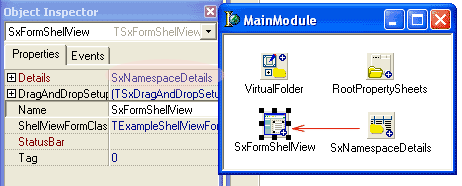
To allow your NSE to be displayed in Details View you will put TSxNamespaceDetails component on SxModule of your namespace extension project and connect it to ShellView component through Details property.

After that you should specify the list of custom and common columns (at this moment there are no difference) in the Columns property of TSxNamespaceDetails component. This operation is similar to the same operation with TSxColumnProvider component.

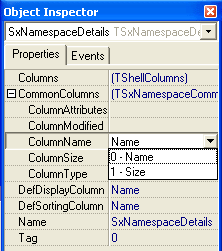
After the list of columns have been specified, you will specify which of your columns are common. You can do it using CommonColumns property of TSxNamespaceDetails component:

The contents of common columns generated automatically, based on data from DataProvider.OnGetGrainFileInfo event. You can find more information on this event in "Writing data handling events for DataProvider" article.

To provide contents of your custom columns you should write one of the following event handlers: TSxNamespaceDetails.OnGetColumnText or TSxNamespaceColumn.OnGetData.

You can download examples: D4, D5, D6, D7

TSxShellViewPlus component instead of TSxSysShellView component

TSxSysShellView component - is a wrapper for common shell view, that used for all Shell folders on Windows 2000 and Windows XP systems. It is the mostly complete implements system functionality but it works only on W2K and XP.

TSxShellViewPlus component - is a custom written shell view, that will work on all common operating systems - Win95, Win98, Me, NT4, W2K and XP. Custom shell view implementation commonly used in namespace extensions development because it supported by different operating systems.

With Shell+ you have a great opportunity. You can switch between any of your shell views in runtime. For example: you have TSxShellViewPlus and TSxSysShellView component placed on your SxModule. You can handle SxModule.OnCreate event to detect, what operating system is currently running and switch ShellFolder.ShellView property to valid ShellView component.

End of article.Go top

Code examples for this article

ShellViewForm example demonstrates, how to implement:

     NSE contents with TSxSimpleTreeProvider component
     Flexible custom ShellView using TSxShellFormView component
     Clipboard operations
     Drag'n'Drop operations to and from namespace extension
     Accessing your namespace extension from Common Dialogs
     Adding property sheets to the root and data grains of your NSE

Delphi 4 version (uses vcl40.bpl) 90 Kb, zip
Delphi 5 version (uses vcl50.bpl) 92 Kb, zip
Delphi 6 version (uses vcl60.bpl) 93 Kb, zip
Delphi 7 version (uses vcl70.bpl) 94 Kb, zip


ColumnProvider example demonstrates, how to add custom columns to *.txt files.

Delphi 4 version (uses vcl40.bpl) 22 Kb, zip
Delphi 5 version (uses vcl50.bpl) 22 Kb, zip
Delphi 6 version (uses vcl60.bpl) 22 Kb, zip
Delphi 7 version (uses vcl70.bpl) 23 Kb, zip


ShellOverlayIcon example demonstrates, how to add overlay icons to *.txt files.

Delphi 4 version (uses vcl40.bpl) 21 Kb, zip
Delphi 5 version (uses vcl50.bpl) 21 Kb, zip
Delphi 6 version (uses vcl60.bpl) 21 Kb, zip
Delphi 7 version (uses vcl70.bpl) 22 Kb, zip


Components | Download | Purchase | Support | About Us
Copyright © 2001 - 2006 Shell+ Development Group. All rights reserved.